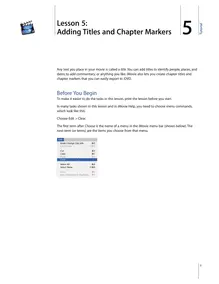
5 Lesson 5: Adding Titles and Chapter Markers 5Any text you place in your movie is called a title. You can add titles to identify people, places, and dates; to add commentary; or anything you like. iMovie also lets you create chapter titles and chapter markers that you can easily export to iDVD.Before You BeginTo make it easier to do the tasks in this lesson, print the lesson before you start.In many tasks shown in this lesson and in iMovie Help, you need to choose menu commands, which look like this:Choose Edit > Clear.The first term after Choose is the name of a menu in the iMovie menu bar (shown below). The next term (or terms) are the items you choose from that menu.1Tutorial Adding TitlesEach title style has a different set of options, and each lets you put different amounts of text on the screen at once. Use the Titles pane, shown below, to add titles to your movie.To create a title:1 Click the Titles button to open the Titles pane.2 Select a title style in the list.3 Type the text you want to appear onscreen in the text fields. 4 Choose the font, text size, and text color. 5 Set the duration sliders. The Speed slider sets how fast the titles move into and out of the movie. The Pause slider sets how long the words hold still on the screen (most of the title styles incorporate word movement or fading in and out). The title’s duration is the total of the speed and pause, and is shown at the bottom of the ...